
Start with your input
Use Photo Style Converter to compare tools that start with text, one image, or multiple images.
photo style converter
Photo Style Converter helps you turn a photo into a chosen visual style without learning professional editing software.
Use the photo style converter for a known look: cartoon, watercolor, oil painting, pixel art, or clay.
Start with: One photo plus a preset
Try a preset converterUse a separate style referenceThis photo style converter does not accept a second style-reference image; use one source photo and describe the palette, linework, texture, and light.
Start with: One photo plus written style traits; no second reference image
Open the closest live workflowWrite custom style instructionsUse the photo style converter with a detailed prompt for custom composition, materials, color, lighting, or constraints.
Start with: A detailed prompt; reference image optional
Open custom image workflowCompare Photo Style Converter by the input you already have and the result you need, then start with the working panel.
This collection includes 10 workflows across photo style converter. Each card in this photo style converter collection states its starting input and intended result.
Use this photo style converter group for drawn characters, animation-inspired rendering, and profile art.
Choose a photo style converter here for tactile materials, painted surfaces, or pixel structure.
Open a photo style converter in this group when the subject or setting itself changes most.
Featured Photo Style Converter workspace
Turn a portrait, pet, or scene into a clean cartoon image. This Photo Style Converter workspace shows the required inputs and controls before submission.
Credits for this run: 4
Track Photo to Cartoon tasks and inspect finished results here.
Use these Photo Style Converter examples to compare inputs, outputs, and use cases before opening a tool.
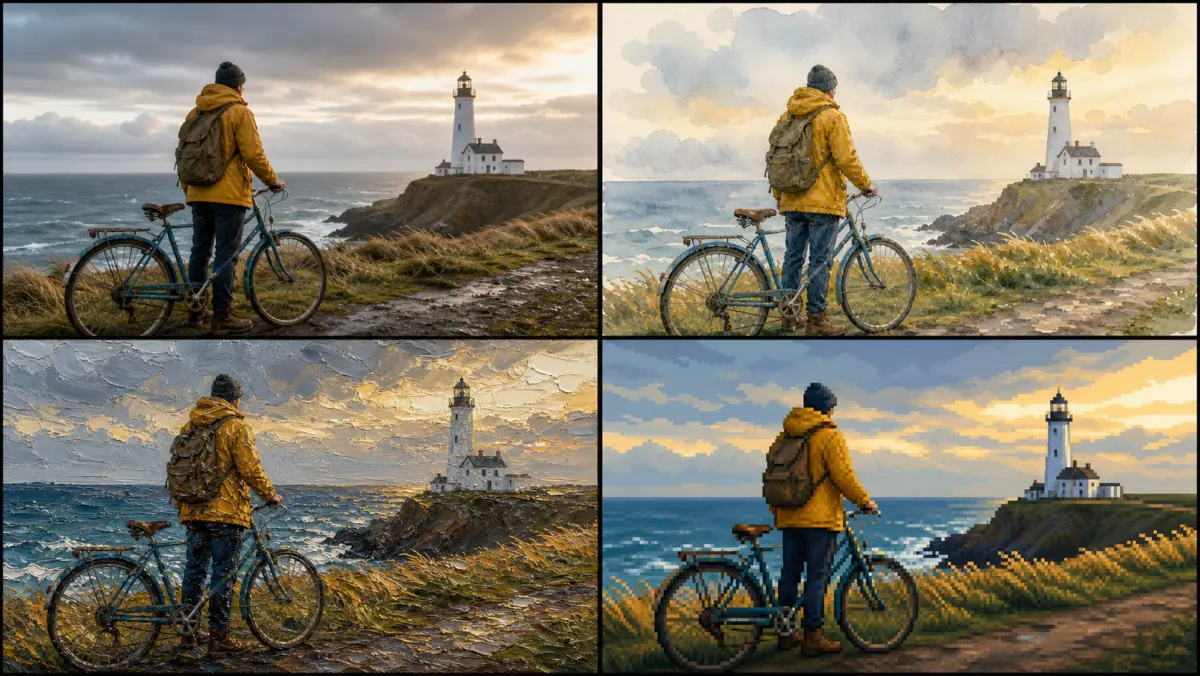
Use this Photo Style Converter preview to compare the category before choosing a tool.
Use Photo Style Converter to compare tools that start with text, one image, or multiple images.
Compare Photo Style Converter by the finished format, framing, and level of control you need.
Review Photo Style Converter results for edges, text, identity, and source-image consistency before reuse.
Before using Photo Style Converter, confirm that you may upload and edit every source image.
Open the Photo Style Converter workspace to see its credit cost before you submit a task.