
Task-specific directions
In Photo to Clay, choose Clay Portrait, Miniature Diorama, or Stop-Motion Frame as a focused starting direction.
photo to clay
Turn a photo into a handcrafted clay-model-style image.
Credits for this run: 4
Track Photo to Clay tasks and inspect finished results here.
Prompts are screened before eligible AI image requests are sent to a model. Do not submit NSFW, sexually suggestive, harmful, deceptive, or infringing content. Read the Acceptable Use Policy
The photo to clay gives you a focused workspace for a handcrafted clay-style image with modeled forms, tactile texture, and miniature lighting. Start with one clear photo, then use the page-specific controls to shape the result.
Compare the illustrative Photo to Clay example and its built-in direction, then inspect your generated result in the workbench above.
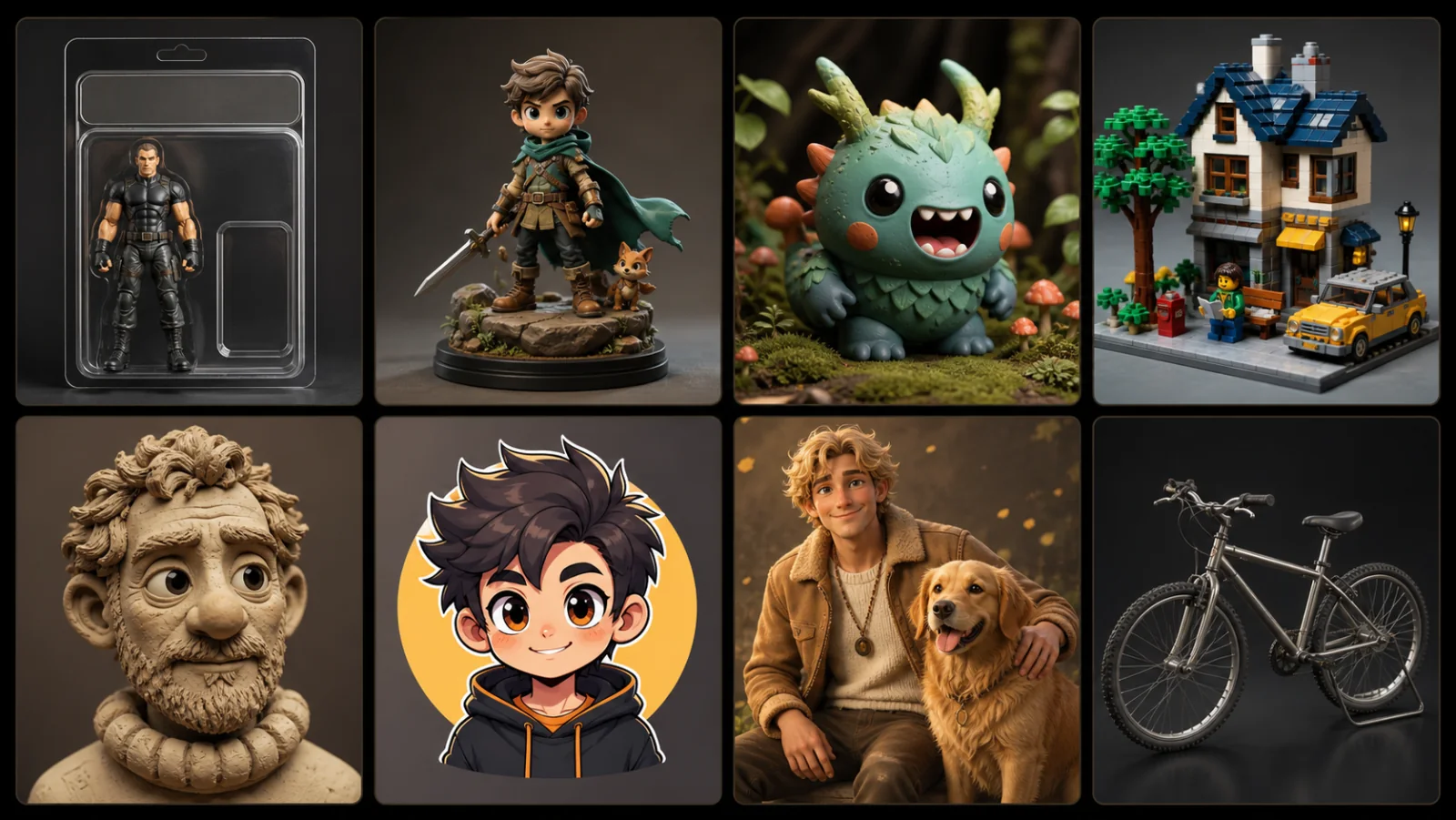
Illustrative clay direction—not your generated result. Check recognizable proportions, hand-made texture, material consistency, contact shadows, and clean small details.
Clay Portrait
Clay Portrait is tuned for a handcrafted clay-style image with modeled forms, tactile texture, and miniature lighting.
Miniature Diorama
Miniature Diorama is tuned for a handcrafted clay-style image with modeled forms, tactile texture, and miniature lighting.
Stop-Motion Frame
Stop-Motion Frame is tuned for a handcrafted clay-style image with modeled forms, tactile texture, and miniature lighting.
Photo to Clay starts with one clear photo; check that the important subject is clear.
In Photo to Clay, set the preset, crop ratio, resolution, and any details you want the result to follow.
Inspect the full Photo to Clay result, then download it or reuse it as a new reference.
In Photo to Clay, choose Clay Portrait, Miniature Diorama, or Stop-Motion Frame as a focused starting direction.
Photo to Clay lets you choose a portrait, square, landscape, or vertical canvas when the task supports reframing.
This creates a static 2D raster image with clay-like texture. It does not produce a physical sculpture, 3D mesh, printable geometry, rig, or stop-motion animation.
Uploads accept PNG, JPG, and WebP files. Completed results stay in your private task history for full-size review, reuse, and download. The action button shows the credit cost before each run.
Use Photo to Clay for clay portrait concepts, then add only the subject or scene details that matter to your result.
Adapt the Photo to Clay result for a post, story, profile, presentation, or private share when the format fits.
Photo to Clay can explore a visual direction before you commit time to a finished campaign, print, or personal project.