
Focused starting point
AI Image Extender is already tuned for wide banner; add only the subject or scene details that matter.
AI image extender
Expand an image beyond its original borders for a new aspect ratio or composition.
Outlined area: source image · Muted area: AI-generated extension
Credits for this run: 10
Track AI Image Extender tasks and inspect finished results here.
Prompts are screened before eligible AI image requests are sent to a model. Do not submit NSFW, sexually suggestive, harmful, deceptive, or infringing content. Read the Acceptable Use Policy
The AI image extender gives you a focused workspace for a wider or taller composition with newly generated surroundings that connect to the source edges. Start with one image and a target canvas ratio, then use the page-specific controls to shape the result.
Compare the illustrative AI Image Extender example and its built-in direction, then inspect your generated result in the workbench above.
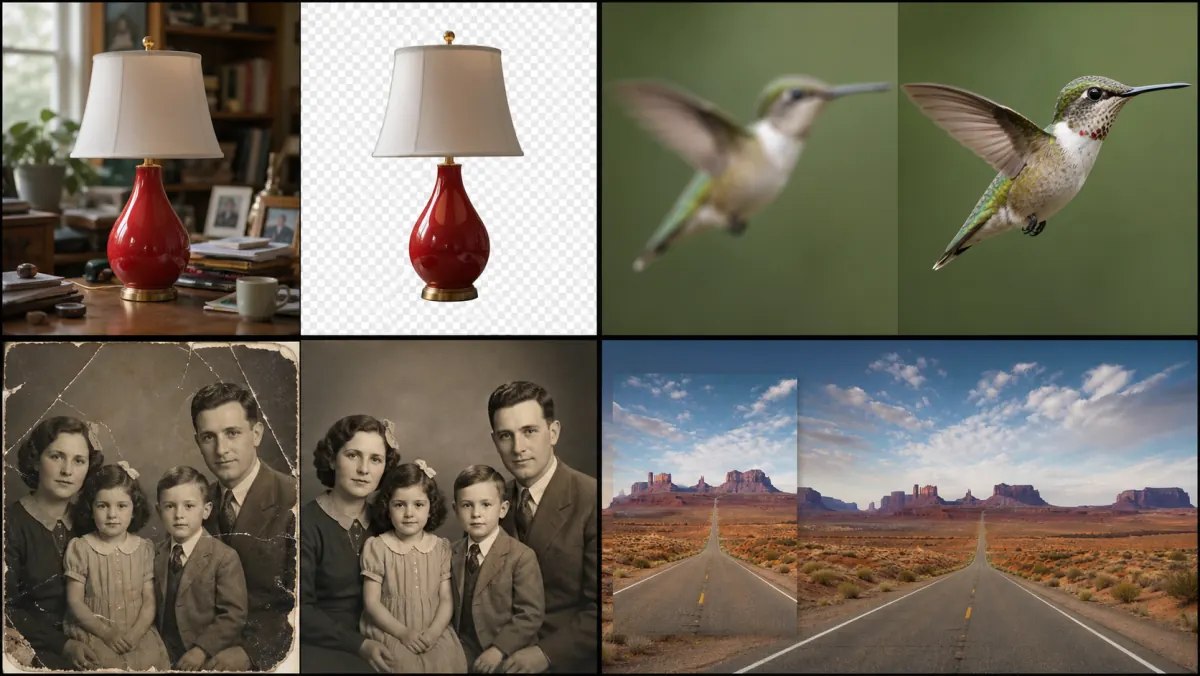
Illustrative canvas-extension comparison—not your generated result. Inspect horizon continuity, repeated details, perspective, and the new crop.
Wide Banner
Wide Banner is tuned for a wider or taller composition with newly generated surroundings that connect to the source edges.
AI Image Extender starts with the image whose central subject and existing composition should remain.
In AI Image Extender, select the target aspect ratio and describe what should continue beyond the original edges.
Review continuity, repeated details, and the new crop in the AI Image Extender result before downloading.
AI Image Extender is already tuned for wide banner; add only the subject or scene details that matter.
AI Image Extender lets you choose a portrait, square, landscape, or vertical canvas when the task supports reframing.
New borders are generated estimates and may change text, logos, people, product geometry, or repeating patterns. Inspect the expanded areas before publishing.
Uploads accept PNG, JPG, and WebP files. Completed results stay in your private task history for full-size review, reuse, and download. The action button shows the credit cost before each run.
Use AI Image Extender to extend a landscape or square source into a vertical story without cutting away the main subject.
AI Image Extender can create more surrounding space for a headline, navigation, or call to action.
AI Image Extender can restore breathing room around a subject that was cropped too tightly.